BytesGlue
Kluvan logoKluvan

Connected business apps & practical AI

One customer. One flow. A whole business that connects.

Bring sales, accounts, projects and your team into one workspace. Choose the apps that fit your work, share the records that belong together and use optional AI to turn documents and notes into drafts you can review. Move from the first enquiry to the money in the bank without rebuilding the story in every tool.

Kluvan official illustration linking customer work across a team
From the Kluvan product website
  • Service businesses
  • Distributors & wholesalers
  • Sales & support teams
  • Multilingual teams

The work it helps you do

Built around the way you operate.

Explore the workflows behind Kluvan, from everyday details to the bigger picture.

01

Keep the customer story together

An enquiry becomes a CRM deal with an owner and a next step. The customer, quotation and subsequent work remain connected, so sales and operations can understand what was agreed. Inbox and customer-care apps support the conversations around that work. Choose the modules your team needs rather than forcing every employee into a different account with a different view of the same customer.

02

Accounts that follow the work

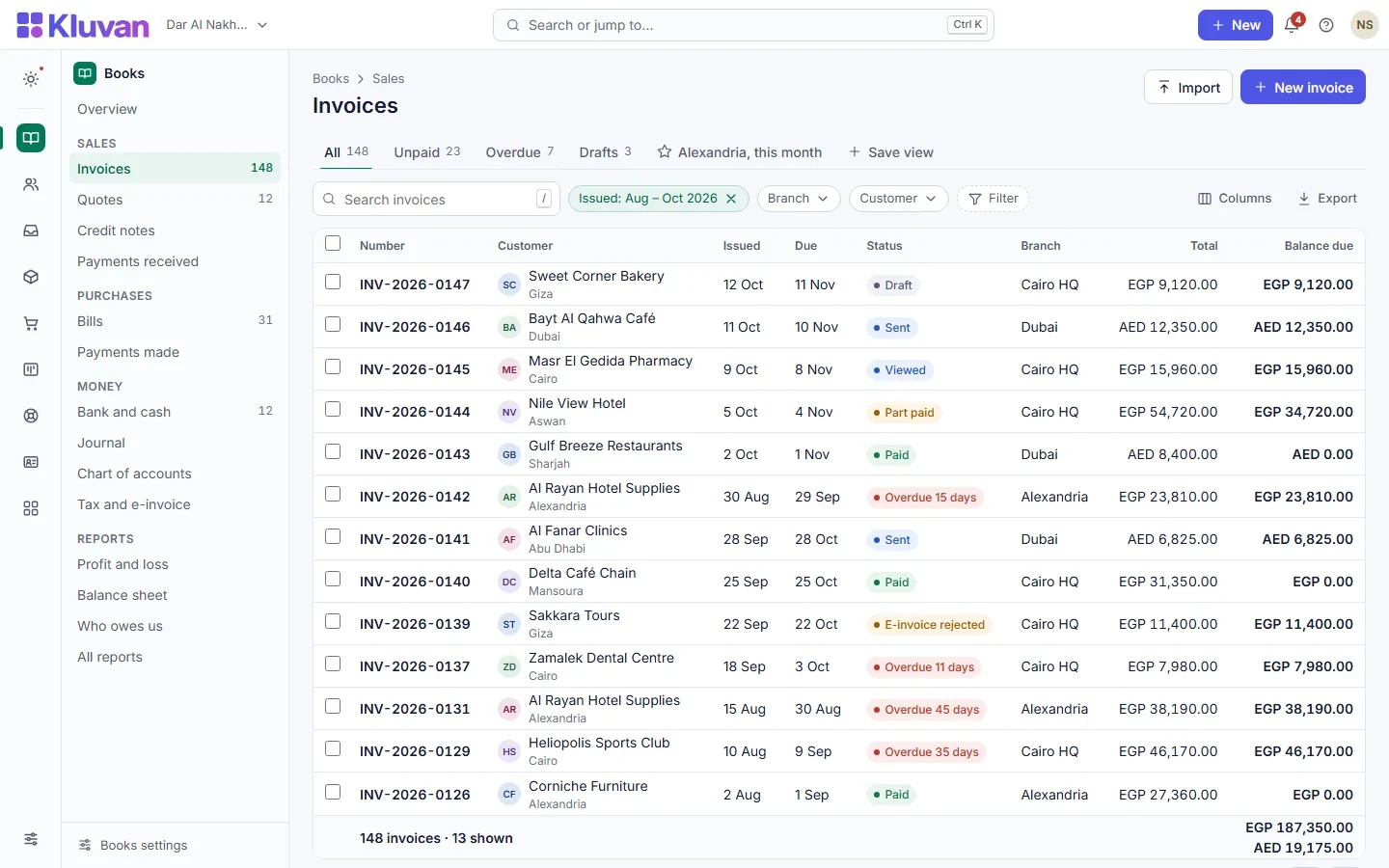
Create quotations, invoices and supplier bills in Books, record collections and reconcile bank activity. Project and service billing can follow milestones, progress or time and materials. Foreign-currency documents and revaluation support businesses working beyond one currency. Country packs shape VAT and local settings; check the current country coverage on Kluvan’s website when configuring your company.

03

Projects and jobs with a route to invoicing

Turn an accepted quotation into work your team can plan and deliver. Follow tasks, time, materials and technicians, then invoice the work in Books. Board, list, calendar, timeline and workload views offer different ways to organise a project. Contracts and documents keep the supporting information near the operational record instead of scattered across folders and messages.

04

Stock, purchasing and people

Inventory, Procurement, Trade and warehouse tools support distributors and teams moving goods. HR, Payroll, Expenses and employee self-service handle the people side. Choose a service or trade bundle, individual apps or Kluvan One. Some modules are marked coming soon on the product website; the app catalogue makes current availability visible before you select a plan.

05

AI that prepares work for review

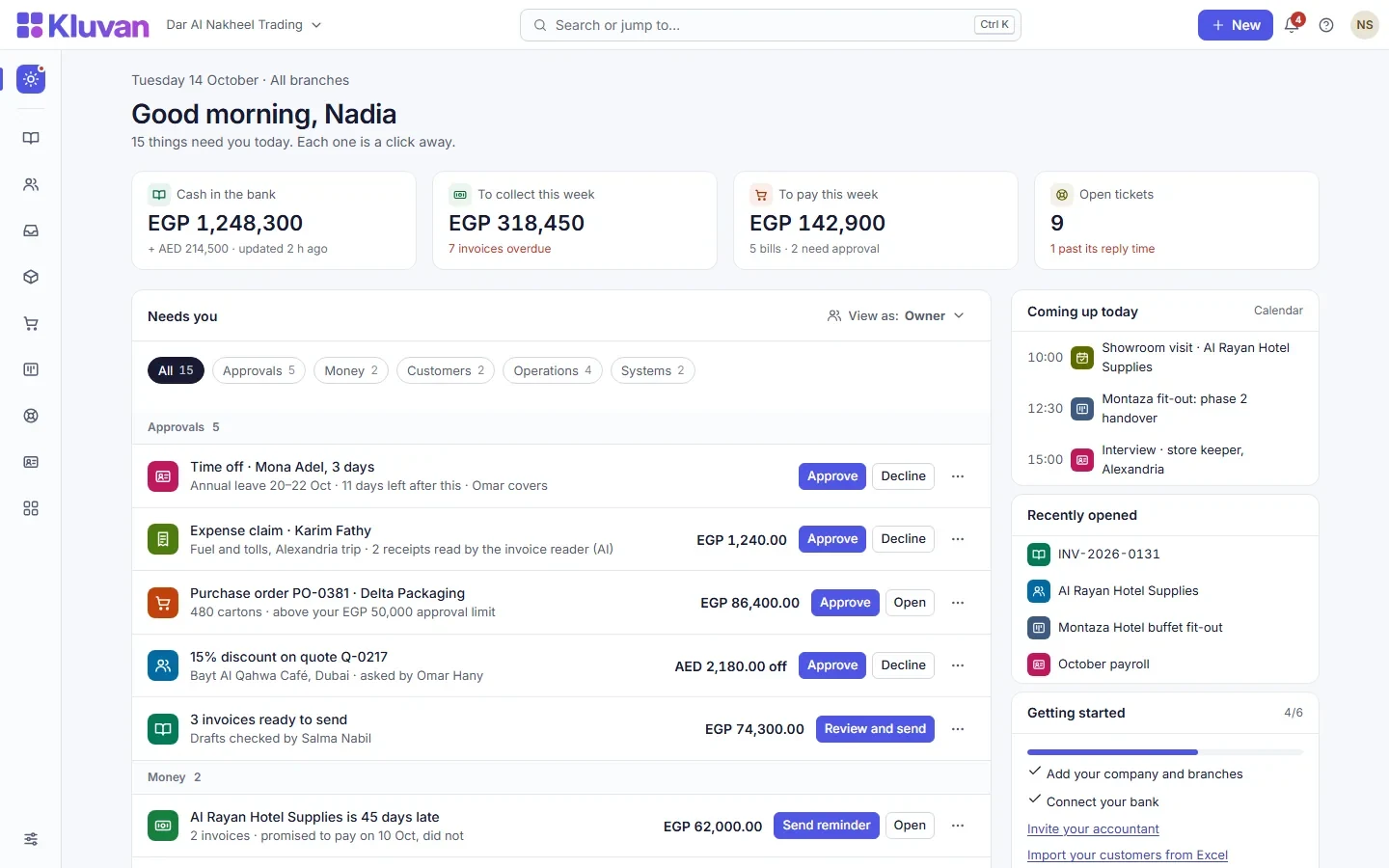
Read supplier bill images and PDFs into accounting drafts, turn meeting notes into suggested tasks and prioritise verified actions in the daily brief. Optional Front Desk assistance follows the customer-service rules you configure. AI stays off until the owner enables it and agrees to provider sharing. Included credits, usage limits and an owner-set spending cap make cost controls explicit.

06

Connect your preferred assistant

The remote MCP connection works with supported assistants such as ChatGPT, Claude and Gemini. Scoped, read-only keys let an external assistant analyse permitted business information while respecting access boundaries. Pause or revoke keys when no longer needed. Rights per person, an activity log and exports support operational control, with supported imports for bringing records across from spreadsheets.

See the product

A closer look at Kluvan.

Product screens and visuals from the official website. Screens may show fictional demonstration data; features vary by edition and plan.

Go beyond the basics

Kluvan features to try: purchasing checks, posting approvals and connected work

Three useful workflows can stay hidden behind an app catalogue: checking supplier invoices, controlling large postings, and finding what needs your attention today.

Read the practical guide →

Your next steps

Start with the workflow that matters.

  1. Try a connected business flow

    Start the 14-day Kluvan One trial with no card, add a customer and create a quotation. Follow it into work and invoicing so you can judge the whole flow rather than an isolated screen.

  2. Choose apps and invite people

    Select the service, trade or customer-care tools you need. Give full users, field staff and employees appropriate access, and let each person choose their interface language. Keep AI optional until the owner is ready.

  3. Move your records carefully

    Import supported customers, suppliers, products and opening balances with preview and checks. Review the first records, configure country settings and use the help resources when replacing an existing workflow.

Before you start

A few useful answers.

Need help choosing the right setup?

Talk to the team →
Do I have to buy every app?

No. Apps are available individually and in bundles. Kluvan One groups the full catalogue, including modules that join when released. The product website shows current apps, included users and plan details.

Is AI required?

No. Owners can leave model features off. When enabled, credits and provider-sharing settings apply; supported bring-your-own-key options are available. Core business workflows do not require an external AI subscription.

Which languages are available?

English, Arabic, Urdu, Hindi, Bengali, Malayalam, French, Spanish, Portuguese, Turkish and Indonesian. Each person can choose a language. Country-rule coverage is separate from interface language.

Can my accountant and customers use it?

Current plans include accountant access and customer portal users. Check the plan for full-user, field-user and employee self-service allowances before choosing your setup.

Take the next step

See what Kluvan can do for you.

Explore the product, review its current plans and find the workflow that fits your team.

Compare Kluvan and Zoho One →
Customer support Talk to us